This guide shows how to keep devices that nobody logs in on — access points, managed switches, the peer router in a redundancy pair, cameras, printers, POS terminals, servers, IoT gear — online and reachable behind a Powerlynx hotspot on MikroTik. The fix is a single hotspot IP binding of type bypassed, added on your own router. Nothing needs to change in Powerlynx.
The problem
The Powerlynx bridge runs the MikroTik hotspot. The hotspot holds back every device that has not authenticated in the captive portal: the device is connected to the network, but it has no general Internet access until someone logs in.
That is exactly what you want for guests. It is a problem for a device with no browser — an AP, a switch, a camera — because there is nobody to open the splash page and log in.
A typical symptom: a cloud-managed AP cannot register to its vendor cloud. In a real case, a Ruijie AP registered without trouble while the ISP link was connected to the router’s default bridge, but would not register once it sat behind the Powerlynx hotspot bridge. The VPN to Powerlynx was not the cause — the hotspot was simply holding the AP like any other un-authenticated device.
How to recognise it: the device works on the default bridge but fails on the hotspot bridge. If that matches, this guide is the fix.
When this helps
Use a bypass for devices you own that must always have Internet, or must be reachable, without a person logging in:
- cloud-managed or controller-managed access points
- managed switches
- the peer router in a redundancy pair (see the VRRP guide linked at the bottom)
- printers
- CCTV / IP cameras
- POS terminals
- servers
- IoT devices
Warning: Do not bypass customer or guest devices. A bypassed device skips the portal completely, so it gets around the login and the plan. Bypass only devices you own.
What “bypassed” means (and the trade-off)
An IP binding of type bypassed excludes the device from hotspot login. This is a standard MikroTik hotspot feature — see the MikroTik HotSpot documentation.
- It is a router-side setting on your own MikroTik. No change in Powerlynx is needed.
- The bypassed device skips the portal login, so it gets no splash page and no plan/session of its own.
- The binding is removed or disabled whenever you want the device back under the portal (see Pitfalls).
1. Find the device’s MAC address
You need the MAC address of the device (AP, switch, camera …). It is usually printed on the device’s label. You can also read it on the MikroTik while the device is connected, in any of these places:
- IP > Neighbors — shows the device’s Identity and MAC Address (for devices that announce themselves)
- IP > ARP
- IP > DHCP Server > Leases
- IP > Hotspot > Hosts
2. Add the IP binding in WinBox
- Open IP > Hotspot > IP Bindings and click +.
- MAC Address = the device MAC.
- Server =
all. - Type =
bypassed. - Optionally click Comment and describe the device. Click OK.
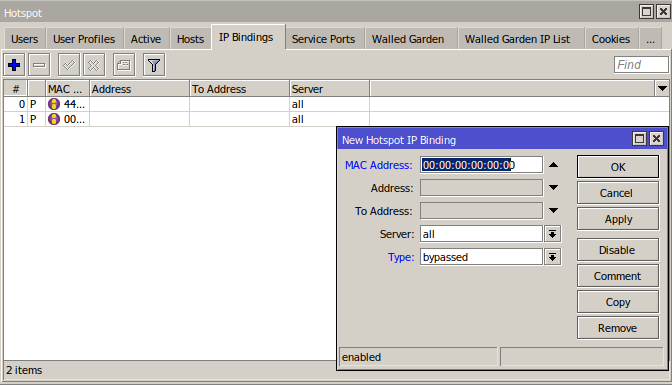
The New Hotspot IP Binding dialog: MAC Address filled in, Server all, Type bypassed. Two earlier bindings are already listed behind it, both with the P flag.
3. Or add it in the terminal
The same thing as one command (replace the MAC with your device’s):
/ip hotspot ip-binding add mac-address=<DEVICE MAC> type=bypassed
Repeat it for each device.
4. Verify
Open IP > Hotspot > Hosts. A bypassed device is listed with the P flag, and the same binding shows in IP Bindings with the P flag too:
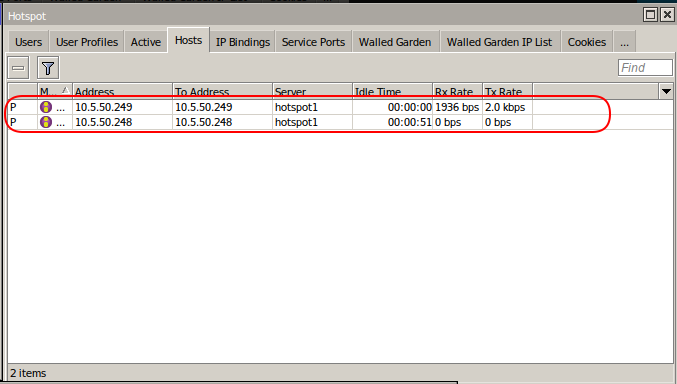
Two bypassed devices in Hotspot > Hosts — flag P, server hotspot1, addresses 10.5.50.248 and 10.5.50.249.
Then check the device itself:
- It should now reach the Internet, for example a cloud-managed AP registering to its vendor cloud.
- Its IP, assigned by DHCP, can be used to open its web interface from the LAN.
Pitfalls
- MAC is the safe choice. If the device gets its address by DHCP, the lease can hand it a different IP later, and a binding made on the IP would not follow it. A binding on the IP address (the Address field) only works as intended when the device has a static IP address. A binding on the MAC keeps working either way.
- To put a device back under the portal, remove or disable its binding. It is then treated like any other client and has to log in.
- Bypass only what you own — never guest or customer devices (see above).
- Still failing after the binding? Then the hotspot is no longer what is holding the device. Check the firewall and DNS on your own router next.
Related links
- MikroTik HotSpot documentation (captive portal, IP bindings)
- MikroTik controller with AP connected via VLAN interface — the same bypass-by-MAC advice for a UniFi controller adopting an AP
- Hotspot redundancy with two MikroTik routers (VRRP, Active/Standby failover) — see the section IP bindings — reaching the switch, APs and the peer router through the hotspot, which uses the same command